Frequently Asked Questions
How do i install a printer?
A person should be able to install most printers that have been setup by I.T. Each person can install the printers for themselves under their login. This is a per-machine basis, so if you were to go to a different machine, you would have to install the printers on that machine.
Before beginning this process, you need to make sure you are connected to the Wheeler Network. You must be connected by one of the following methods:
Click the "Start" button
>
Click "Settings"
Click "Devices"
Click "Printers % scanners"
Click "Add a printer or scanner"
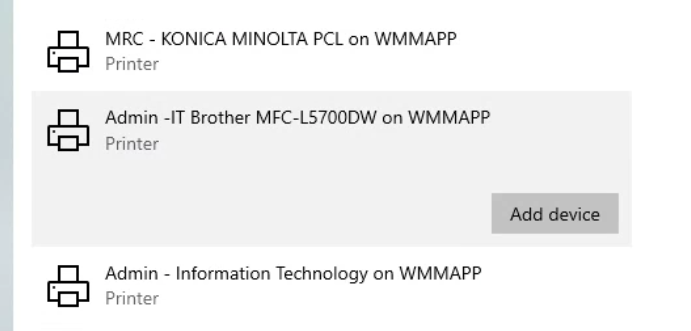
This will begin the process of searching for the available printers at the location you are at. You will see a list of printers begin populating. The printers will have names that correspond to their locations (Admin - ...., Thrift - ..., etc). Simply select the printer wish to add and click "Add device"
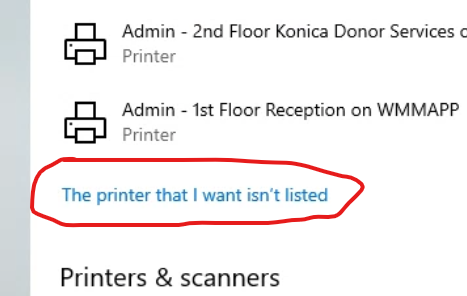
After searching for the printer, at the bottom of the list you will see an additional option of "The printer that I want isn't listed" - click on that.
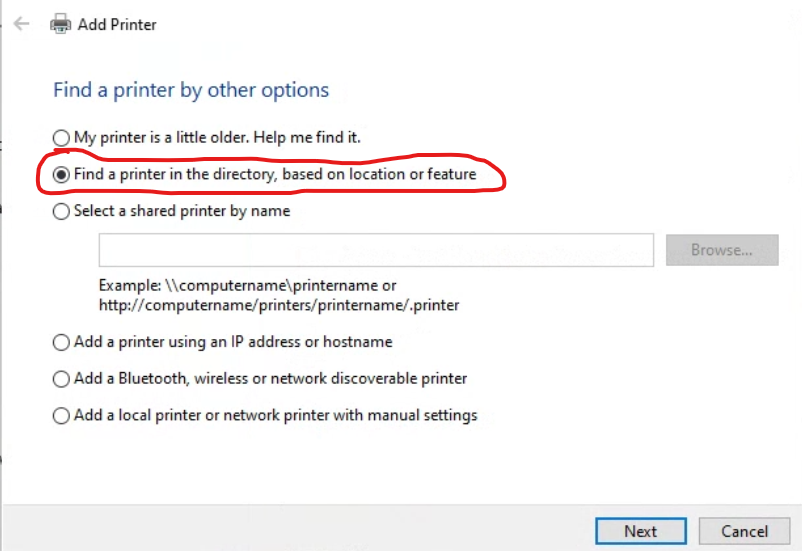
In the next dialogue box, select the "Find a printer in the directory, based on location or feature" option and click the "Next" button
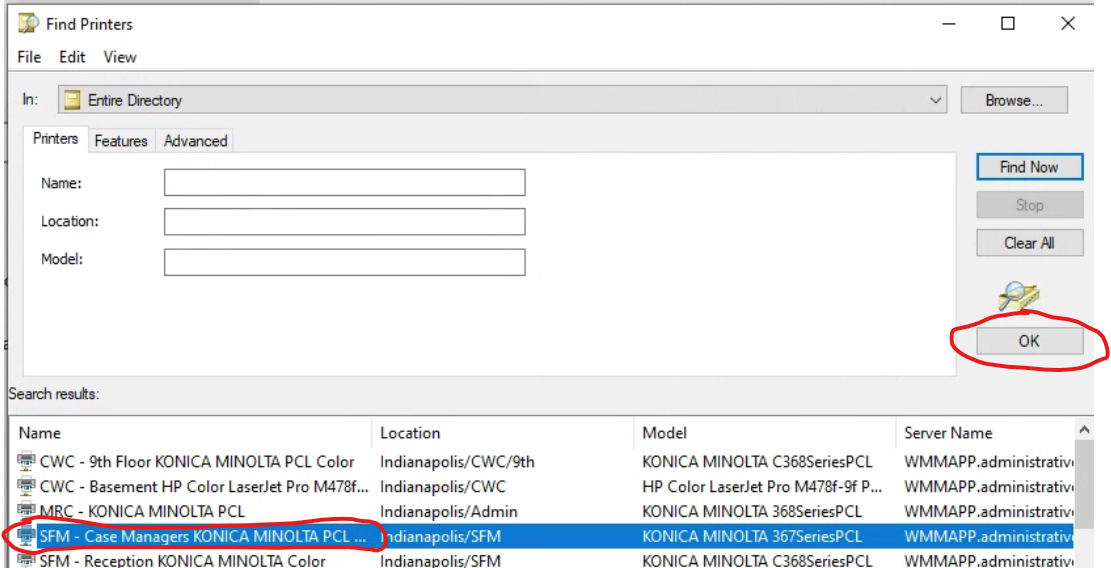
In the next windows, you should see all the available printers. If the printers do not populate, simply click the "Find Now" button and they should populate. Select the Printer you wish to install and click the "OK" button. For easier searching, you can click the "Name" column to sort by Name. You can also use the additional search features to narrow down the list.
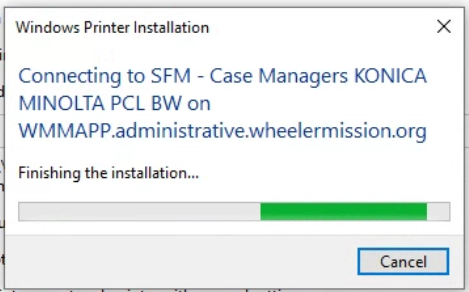
You will then see a box letting you know the printer is being installed,
If you are still having trouble, or the printer is not listed, you will need to create a Service Desk ticket, or get a hold of someone who is able to create a Service Desk ticket to further troubleshoot.
Before beginning this process, you need to make sure you are connected to the Wheeler Network. You must be connected by one of the following methods:
- An Ethernet Cable plugged into your computer
- Connected wirelessly to the "Wheeler Wireless" network (you cannot add a printer connected to the "Wheeler Guest" network
- Connected via a VPN connection
To add a printer:
Click the "Start" button
>
Click "Settings"
Click "Devices"
Click "Printers % scanners"
Click "Add a printer or scanner"
This will begin the process of searching for the available printers at the location you are at. You will see a list of printers begin populating. The printers will have names that correspond to their locations (Admin - ...., Thrift - ..., etc). Simply select the printer wish to add and click "Add device"
What if I don't see the printer I want to install?
By default, the search only shows the printers at the location you are currently at. For instance: if you are at the Women's Shelter in Indianapolis, you won't see the printers for any other facility. To add a printer for another facility, you will need to take additional steps.After searching for the printer, at the bottom of the list you will see an additional option of "The printer that I want isn't listed" - click on that.
In the next dialogue box, select the "Find a printer in the directory, based on location or feature" option and click the "Next" button
In the next windows, you should see all the available printers. If the printers do not populate, simply click the "Find Now" button and they should populate. Select the Printer you wish to install and click the "OK" button. For easier searching, you can click the "Name" column to sort by Name. You can also use the additional search features to narrow down the list.
You will then see a box letting you know the printer is being installed,
If you are still having trouble, or the printer is not listed, you will need to create a Service Desk ticket, or get a hold of someone who is able to create a Service Desk ticket to further troubleshoot.
Last updated 05/16/2023 9:31 am
Please Wait!
Please wait... it will take a second!